Smart Portable TV Display by Infochip Technology All-in-One AI Home Device
Various versions have evolved over then years, sometimes by accident, sometimes on purpose (injected humour and the like).


A portable smart screen can turn any table, sofa, or office corner into a theater or study area. Many people use the smart portable screen for work, gaming, or education, while families bring out the portable smart TV on wheels for group entertainment.
These devices are designed for convenience with built-in batteries and wireless casting, yet they are not free from problems. The good news is that most issues are minor and can be solved with a few careful steps. This guide explains the seven most common problems and how to fix them quickly.
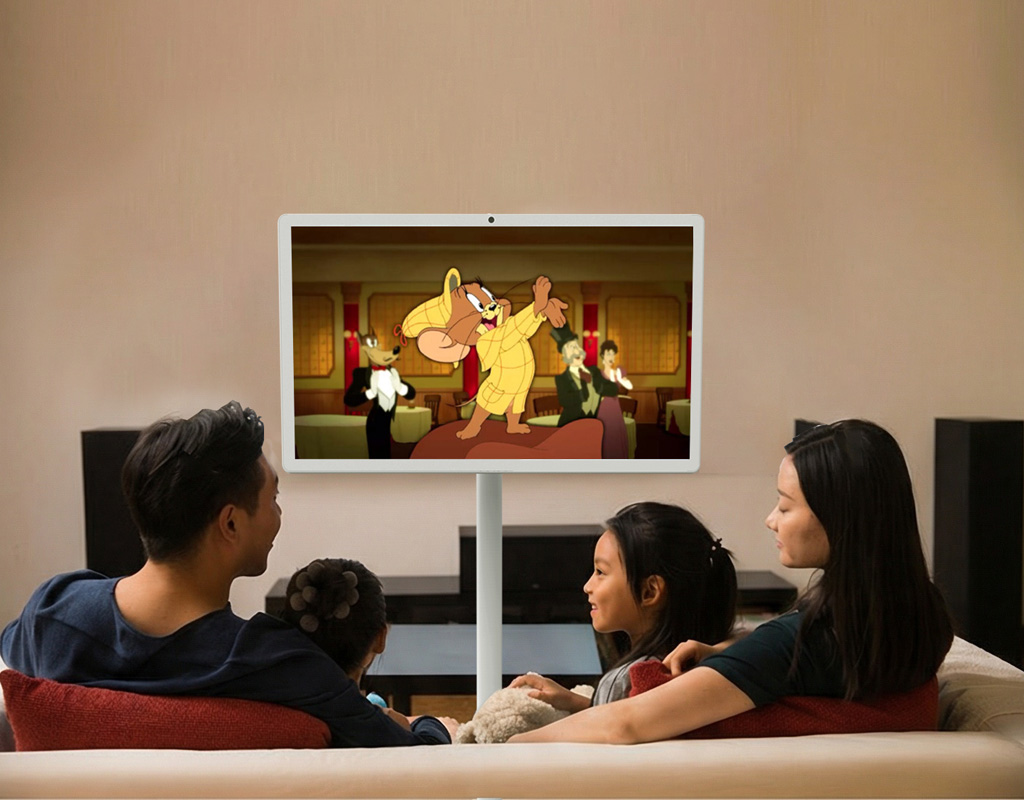
A smart portable screen that refuses to power up can stop your plans immediately. Since most portable smart TV screens run on rechargeable batteries, power problems are usually simple to solve rather than permanent failures.
Make sure the internal battery is not completely drained.Connect the charger to a stable wall outlet, watch for the charging indicator light, and give the device time to build enough power before pressing the power button.
If the charging light does not appear, try another outlet and confirm that the adapter and cable are not damaged. When the best portable smart screen still does not respond after a full charging cycle, the fault may lie in the battery or power circuit, which requires professional attention.
A portable smart TV that will not turn on is usually caused by a low battery, a weak adapter, or an overlooked connection, and in most cases normal charging restores it to working order.
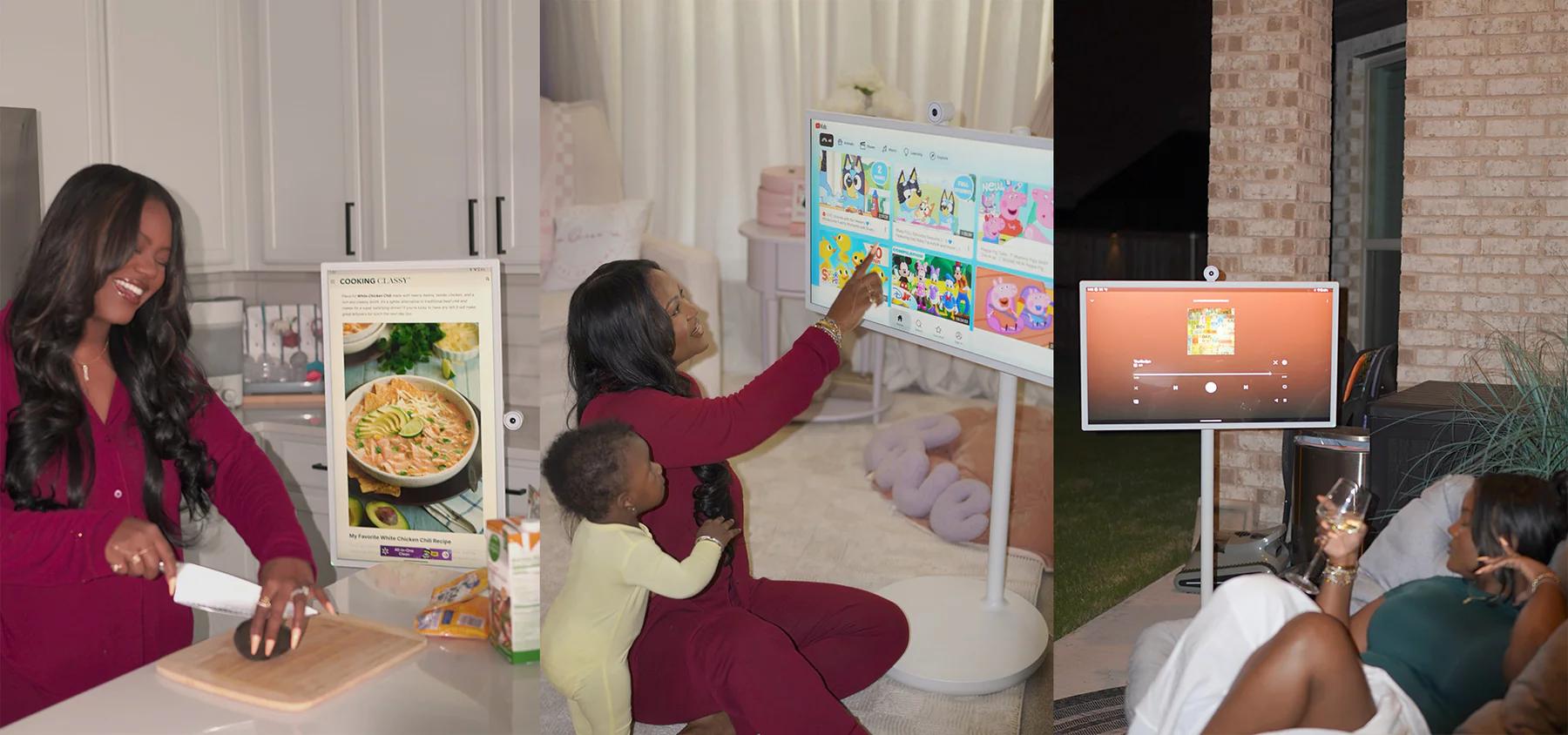
It is frustrating when the portable tv powers on but only shows a blank panel. This situation usually comes from input mismatches or unstable connections rather than hardware damage.
Check that both the mobile smart screen and the source device are on the same Wi-Fi network. Restart the casting function from the settings menu or reboot both devices to refresh the link.
If you are using HDMI, confirm the cable is firmly inserted and that the correct input source is selected. Testing the smart portable TV display with another device or a second cable helps identify the real cause.
A blank screen usually signals a connection problem, and adjusting Wi-Fi or input settings normally restores the display.

A flickering portable TV screen is distracting, whether you are presenting slides or watching a movie. The source of the problem often depends on whether you are connected wirelessly or by cable.
Weak Wi-Fi signals or interference can lead to dropped frames and unstable playback. Moving closer to the router or switching to a 5 GHz band usually improves stability.
Loose HDMI cables often create flashing images. A refresh rate mismatch can also be the reason, for example, when the source sends 75 Hz while the screen only supports 60 Hz. Manually adjusting the refresh rate solves the issue.
Screen flicker almost always results from poor connections or mismatched refresh rates, both of which can be corrected quickly.
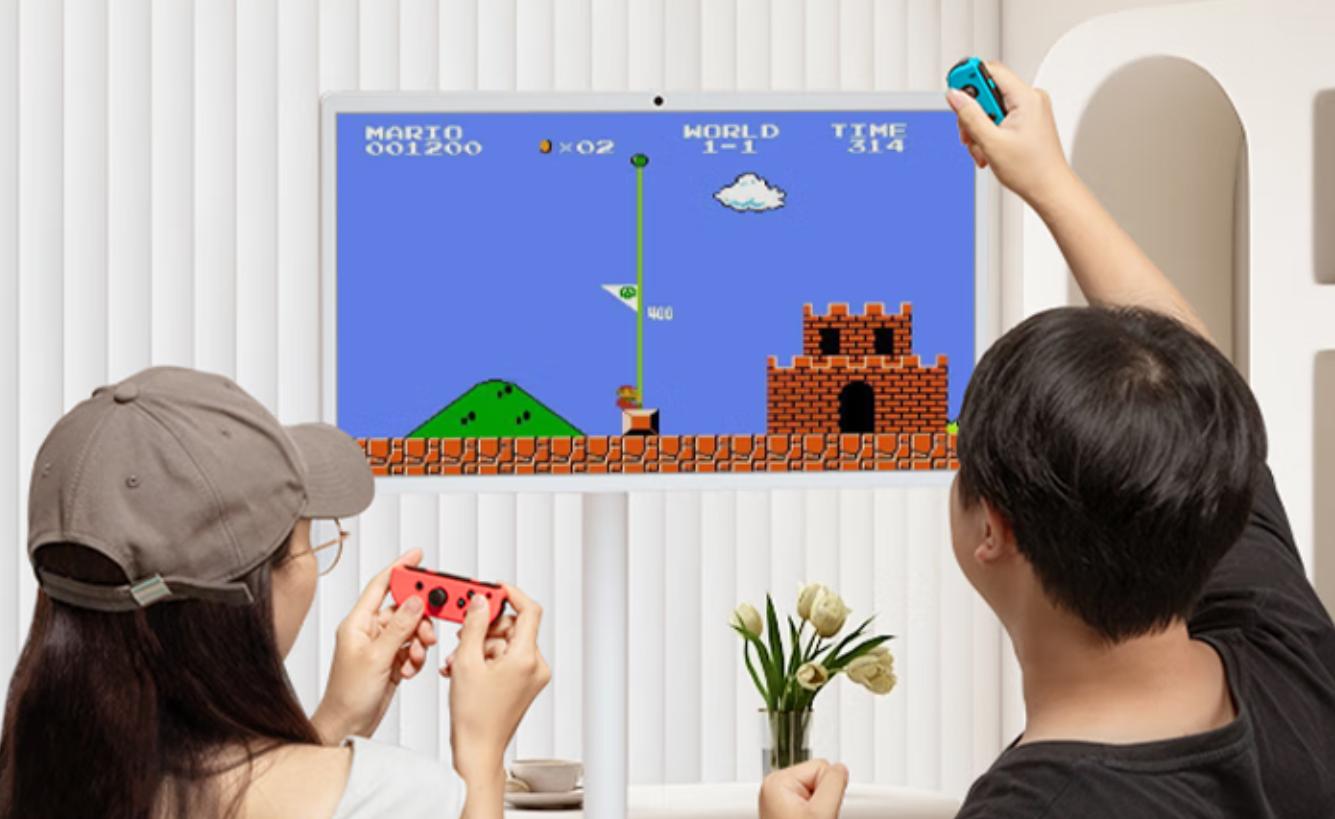
A portable smart screen is expected to deliver crisp visuals, yet sometimes the picture looks blurry, stretched, or faded. This undermines the purpose of using a portable smart display, but it is usually simple to fix.
Source devices sometimes set a resolution lower than what the portable screen supports. Open display settings and choose the recommended resolution. Also, check scaling, because improper scaling can make text and graphics look unclear.
If image quality remains poor in wired mode, the cable may not support high bandwidth. Replacing it with a certified HDMI 2.0 cable ensures the portable smart TV screen receives the full signal without compression.
Most image problems are solved by correcting resolution and scaling or upgrading to a high-bandwidth cable, allowing the screen to display sharp and accurate visuals.

For touch models, the portable smart screen doubles as a drawing, writing, and navigation tool. When the touchscreen stops responding, it limits the usefulness of the best portable screen.
Touch input often travels separately from video signals. Make sure the data cable is correctly inserted if you are using wired mode, and avoid hubs that split power unevenly. In wireless mode, check if the system supports two-way touch communication.
Outdated drivers or firmware can interrupt touch functions.Update the system software to restore responsiveness. Cleaning the screen with a microfiber cloth also helps, since dust or grease can reduce touch sensitivity.
An unresponsive touchscreen is almost always related to connections, settings, or outdated software, and quick checks usually restore full use.
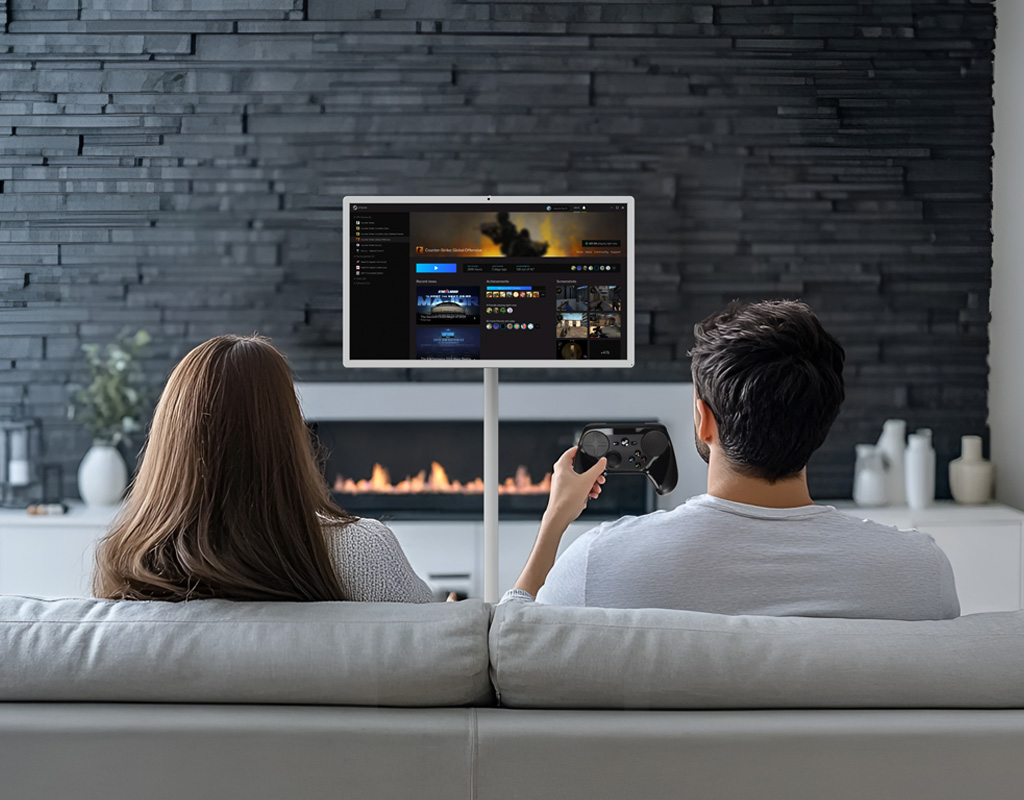
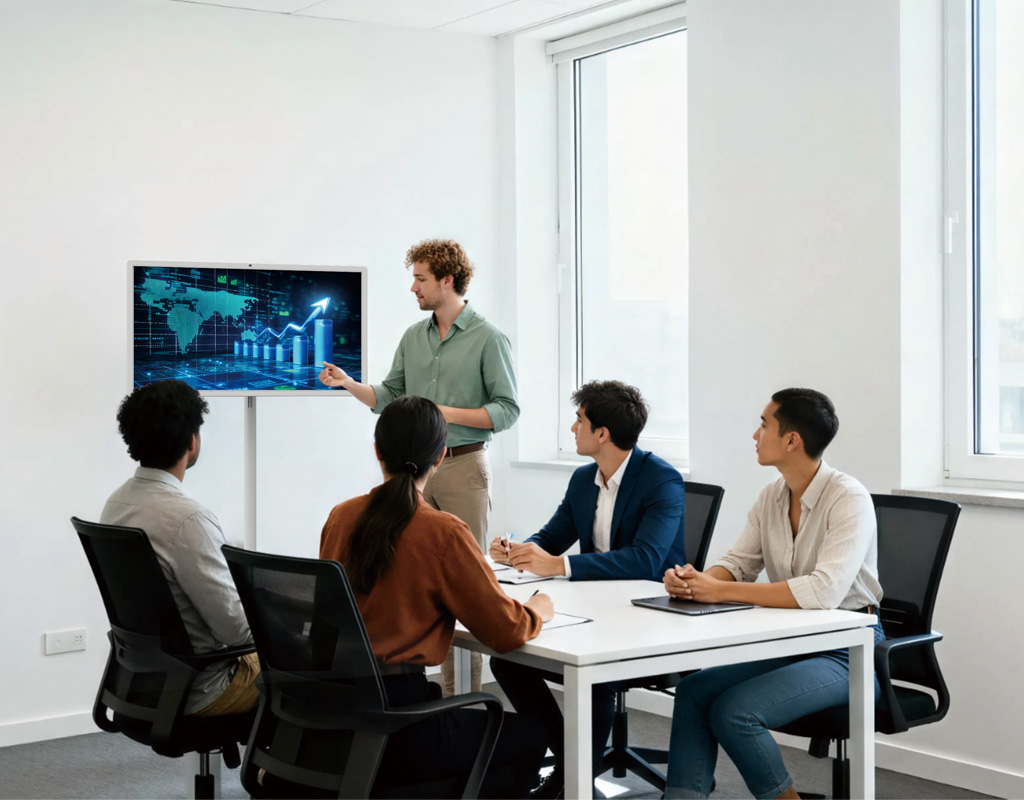
Few things are more frustrating than the portable TV on wheels that connects, disconnects, and reconnects repeatedly. This interrupts work and makes entertainment impossible.
Unstable Wi-Fi, interference from other devices, or frequent switching between access points can all cause wireless dropouts. Choosing a stable network band and keeping close to the router improves consistency.
Low-quality cables, damaged ports, or outdated firmware can cause repeated disconnections. Replacing the cable with a certified option and checking for software updates usually fixes the issue.
Constant disconnects almost always come from weak connections or outdated software, and preparing reliable cables or updating firmware prevents most of these interruptions.